Xolo App Auto shops Guide
Your shop on Xolo App, step by step.
Almost everything comes ready. These are the steps to make it yours and start taking cars by appointment on WhatsApp.
Already set up
Your shop comes already set up.
When you sign up you choose your type of shop and Xolo sets everything up with what is most common. You only review and change what is yours.
- The services for your type: diagnosis, oil change, tune-up, brakes, suspension and more
- Car intake from 8:00 to 10:00 am and hours from 8:00 am to 6:00 pm, Saturdays until 2:00 pm
- Vehicle profile: make, model, year, color, plates and mileage
- Quotes valid for 7 days, with follow-up at 2 and 5 days
- “Here’s how your car is doing” updates and “Ready for pick-up”
- The assistant proposes the appointment and your team confirms it; it doesn’t quote prices
Step by step
About 20 minutes.
Sign up your shop
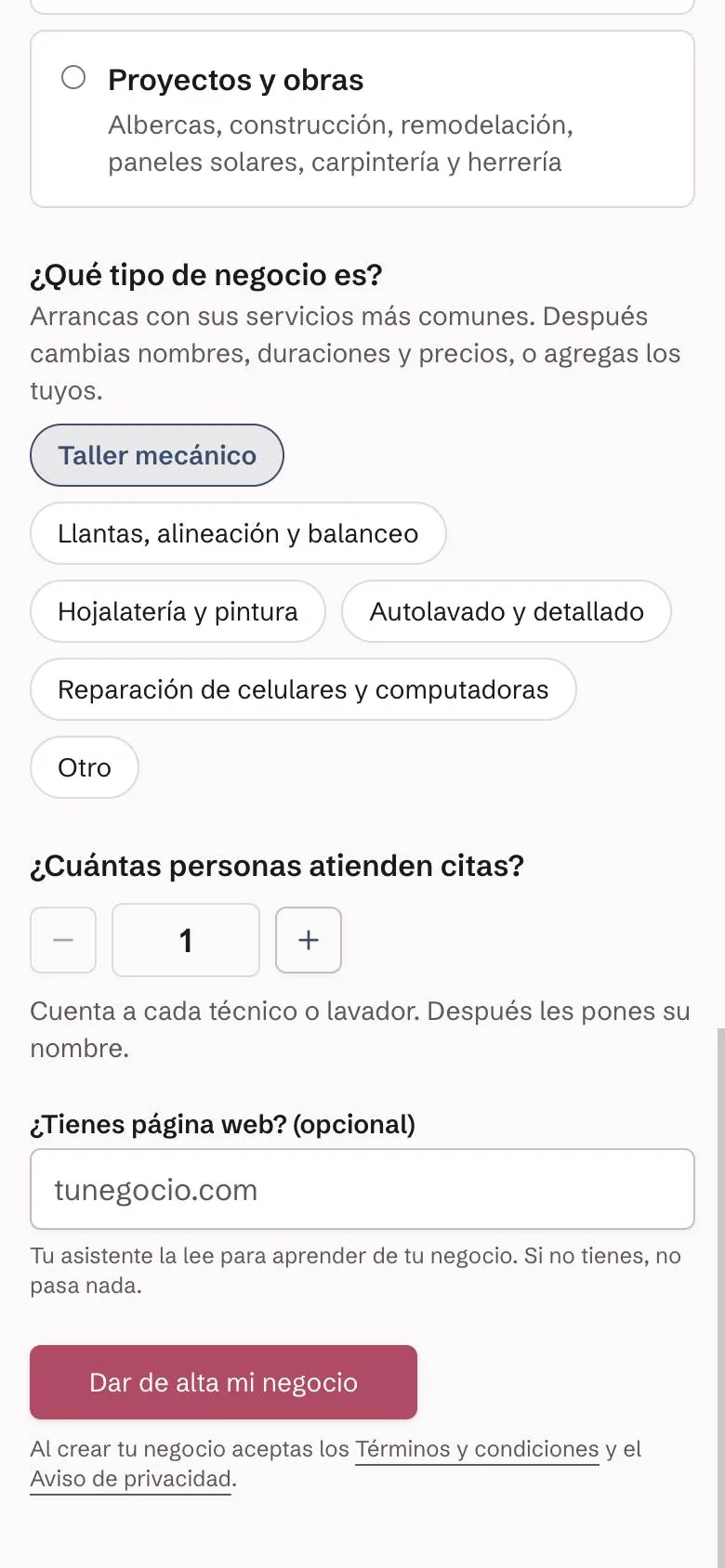
Create your account, type the name your clients know you by, choose “Shops and car washes” and your type.
- Mechanic, tires, body shop, car wash or phone repair
- Tell us how many technicians or washers work
- If you have a website, add it: your assistant reads it and learns about your shop
Adjust technicians, services and intake
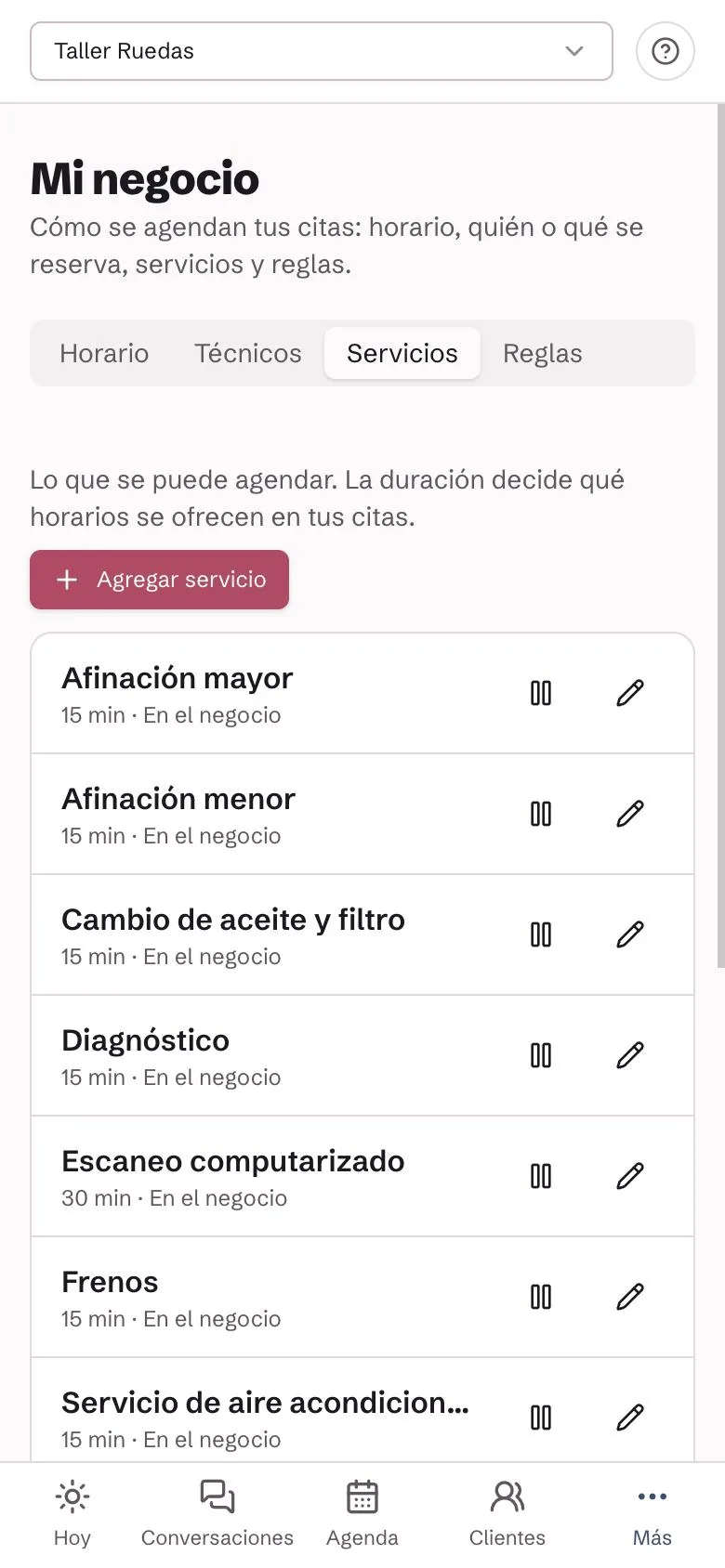
Under My business you add each technician’s name and review your services: how long they take and when you take cars in.
- Instructions when booking: registration card, keys, valuables
- How often each service is due (oil every 6 months)
- Rules: grace period and cancellation window
Tell your assistant what it needs to know
Under Assistant you tell it what clients ask: brands you service, warranty, payment methods, courtesy rides. What it does not know, it does not make up: it tells the client someone will reply shortly and hands you the conversation.
- Test your assistant right there, writing to it as if you were a client
- Choose whether it proposes appointments or books them on its own
Connect your WhatsApp
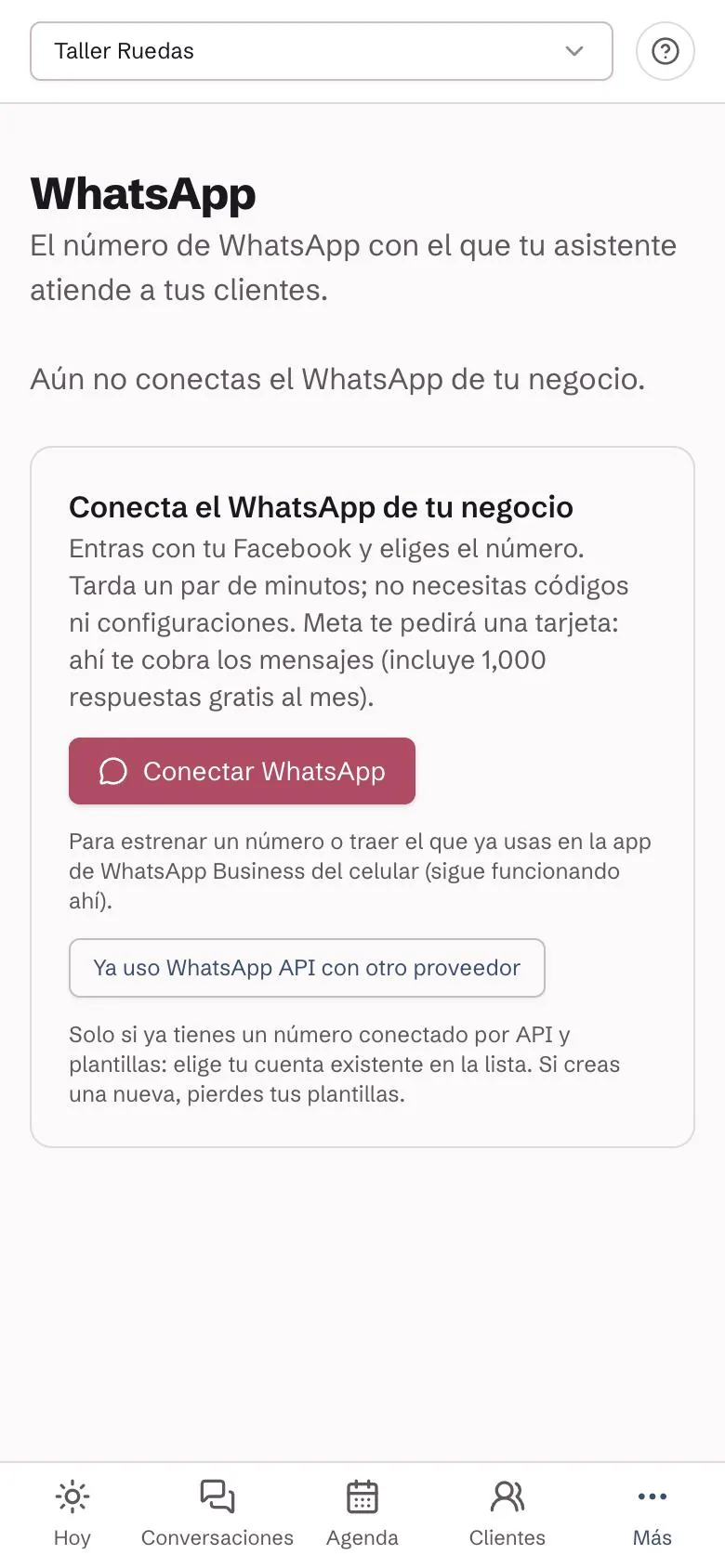
You log in with Facebook and pick your shop’s number. It takes a couple of minutes and needs no codes or settings.
- It can be a new number or the one you already use in the WhatsApp Business app
- Meta asks for a card to charge for messages (see “Keep in mind”)
Review your automatic messages
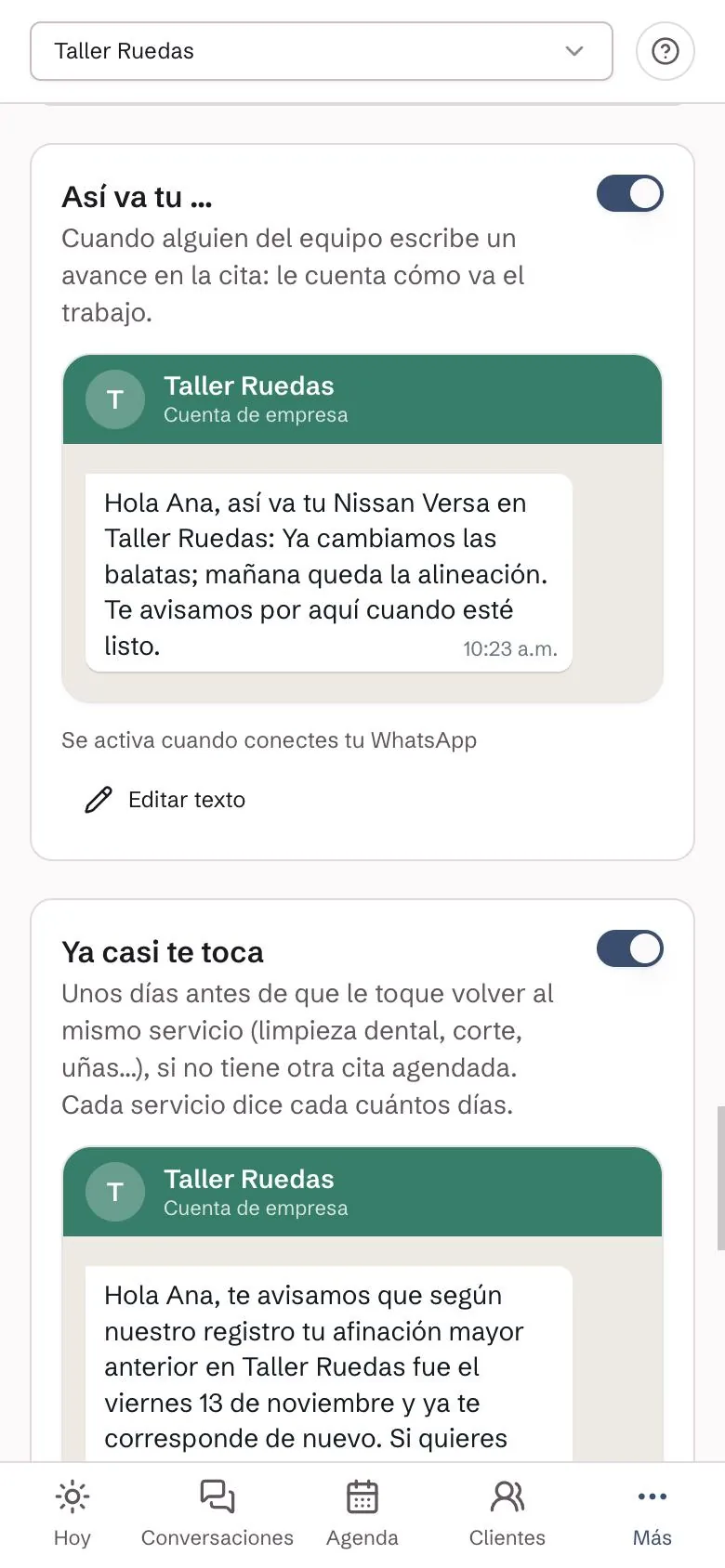
Under Messages you will find the confirmation, reminder, quote and its follow-up, progress updates, “Ready for pick-up” and “Almost time”. Read each one, edit the text if you want and turn on the ones you will use.
- When you connect WhatsApp, Xolo sends them for approval on its own
- You can also create your own by client stage
Invite your team and bring your clients
Under Team you invite your front desk or technicians (up to 5 seats) so they can write updates. Under Clients you can import your contacts from a CSV file.
Try it as a client
From another phone, write to your shop and ask for an appointment for your car. You’ll see it pending under Today; confirm it and write an update to see what the client receives.
Sample data. Screenshots of the real app.
Keep in mind
Good to know before you start.
Meta asks for a card
When you connect your WhatsApp, Meta asks for a card on your WhatsApp Business account. Without it, reminders and updates don’t go out, and your assistant’s replies stop once the month’s 1,000 free messages are used.
Messages are charged by Meta, separately from Xolo
Anything you send to people who wrote to you in the last 24 hours (assistant and team replies, and automatic messages) is covered by 1,000 free messages a month per number; after that, about $0.16 MXN each. Reminders and updates to people who haven’t written to you cost about $0.16 MXN, and promotions about $0.73 MXN. You see the monthly estimate under Subscription.
WhatsApp reviews automatic texts
Automatic messages to people who haven’t written to you in the last 24 hours go out with a text WhatsApp reviews first. Xolo handles that for you and it can take from minutes to a day; if you edit a text, the previous one keeps going out until the new one is approved. People who wrote to you in the last 24 hours get them right away, with their buttons.
Your same number
If you already use the WhatsApp Business app on your phone, that number keeps working there and you can reply whenever you want: the assistant steps aside. If you already have WhatsApp API with another provider, pick your existing account so you keep your templates.
Appointments arrive pending
For shops the assistant proposes the appointment and your team confirms it from Today. If you’d rather it book on its own, you change it under Assistant.
Promotions only to those who opted in
Messages about each appointment, booking or order reach everyone. Anything that sells (offers, seasons, come back soon) only reaches people who agreed to receive promotions, and that is saved on their card.
14 days free, no card
Your assistant includes 1,500 replies a month and up to 5 seats for your team. If it does not work for you during the trial, you simply do not continue and pay nothing.
With this, your shop takes cars by appointment on WhatsApp.
If you get stuck on any step, message us and we will help you get it ready.